Microsoft's Windows Sandbox offers a secure, temporary environment to test untrusted software without risking your main PC. However, this powerful feature is exclusive to Windows 11 Pro, Enterprise, and Education versions, limiting its accessibility for many Indian users.
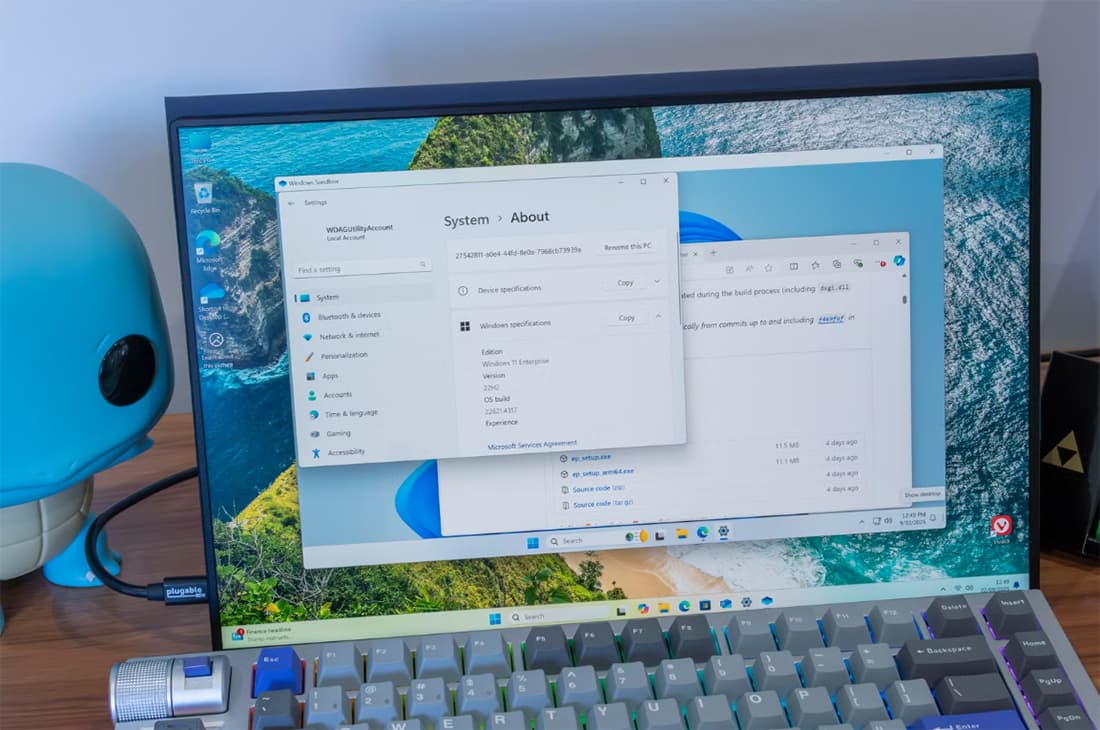
Microsoft's Windows Sandbox provides a discreet and secure method for testing potentially risky software, offering a temporary, isolated Windows environment. This built-in feature lets you run apps, install utilities, or experiment with questionable downloads without any permanent impact on your actual Windows installation, as reported by XDA Developers.
The core benefit of Windows Sandbox is its disposability. It creates a virtual machine (VM) that is entirely separate from your host operating system. Even if you install something malicious or fill the desktop with unwanted software, closing the Sandbox window instantly discards the entire virtual disk, memory, registry, and all files created or downloaded within it. When you reopen it, you start with a clean slate.
Under the hood, Sandbox uses hardware-based virtualization and a separate kernel to maintain isolation. Microsoft designed it to be lightweight, using a shared base image that dynamically links to your host OS's existing system files. This approach saves gigabytes of disk space and overhead, yet any potential malware running inside the VM cannot access your real disk, processes, or memory.
For Indian users often dealing with obscure utilities, unsigned tools, or older software from various online sources, this feature can be incredibly useful. Instead of hoping a download is benign, you can test it in a disposable space, mitigating risks to your personal data and system integrity.
However, it's crucial to understand the requirements to use Windows Sandbox. It is exclusively available on Windows 11 Pro, Enterprise, and Education versions. If your PC runs Windows 11 Home, you won't have access to it. Additionally, you need a 64-bit machine with hardware virtualization enabled in your BIOS/UEFI settings. While it's lightweight, having a few gigabytes of RAM to spare is recommended, with 32GB systems offering a smoother experience.
Enabling Windows Sandbox is straightforward enough. Simply press the Windows key, search for "Turn Windows features on or off," tick the "Windows Sandbox" option, and then reboot your PC. After the restart, "Windows Sandbox" will appear in your Start menu, ready to launch a clean desktop environment.
For basic use, you just open Sandbox, drag your suspicious file into its window, and run it. Any installations or actions taken within this environment will be confined. Closing the window is enough to remove everything. But for heightened security, you can create custom .wsb configuration files. These are plain-text XML files that allow you to launch a preconfigured Sandbox, disabling features like networking, virtual GPU, clipboard, printer, microphone, and camera redirection. You can even map a dedicated quarantine folder as read-only, giving the Sandbox access to the file you're testing without allowing it to write back to your actual filesystem.
While Windows Sandbox provides a significantly safer way to run untrusted executables compared to doing so directly on your main system, it is not an impenetrable fortress. Some bridges between the host and guest environment do exist. Nevertheless, for most everyday scenarios involving potentially sketchy downloads, it offers a robust layer of protection.
Honestly, the biggest hurdle for many Indian users will be the Windows 11 Pro requirement. Many budget and mid-range laptops in the market come with Windows 11 Home, making this valuable security feature inaccessible without an upgrade. If you do have a Pro version, it's definitely worth enabling for peace of mind when exploring new software.