Don't let your old laptop gather dust. This guide shows you how to repurpose it as a secondary display for your Windows PC, Mac, or even a gaming console, saving you from buying a new monitor.
Many of us have an old laptop lying around, perhaps a trusty workhorse from a few years ago that now feels a bit slow or has been replaced. Instead of letting it gather dust, you can actually turn it into a useful second monitor for your main computer, whether you're on Windows, Mac, or even a Linux setup. This can save you from spending extra money on a new display, which is a big plus for Indian consumers looking to maximise their existing tech.
The idea of a second screen is great for productivity. You get more visible tabs, easier multitasking, and generally more workspace. While it's not as simple as just plugging in an HDMI cable, as Engadget reported, the process is fairly straightforward with a few tweaks.
Wireless Options: Windows, Mac, and Cross-Platform
Windows 10 and 11: Miracast Magic
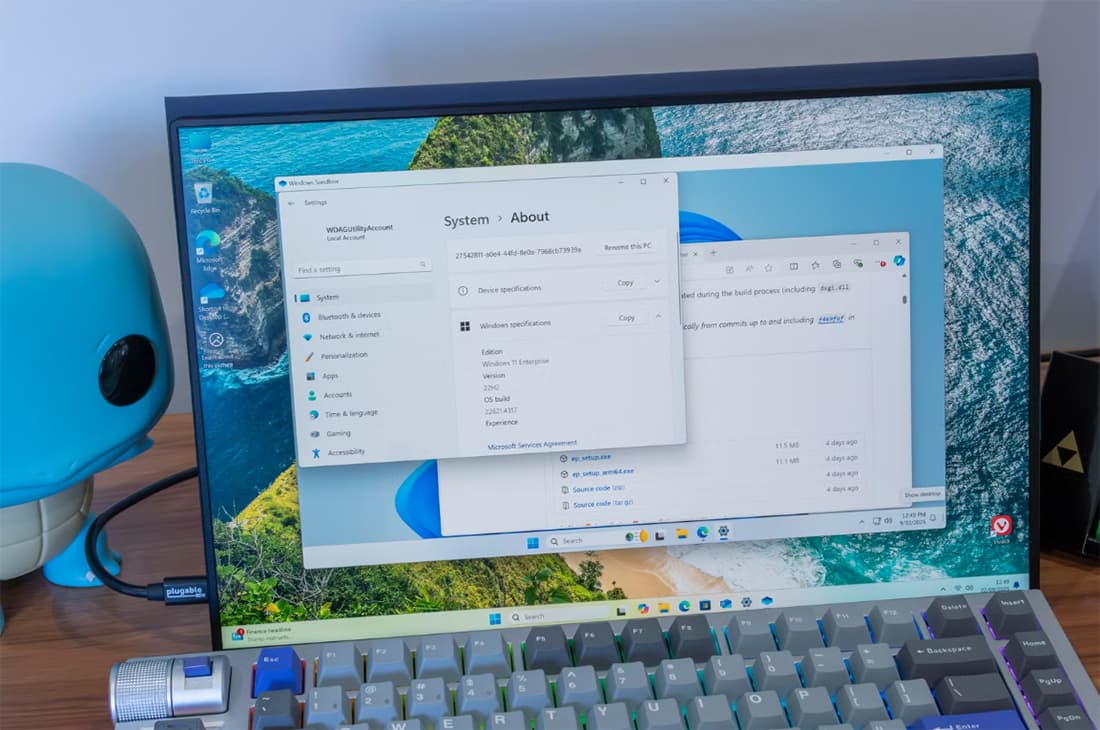
If both your primary desktop or laptop and the spare one run Windows 10 or 11, you're in luck. Microsoft's built-in wireless casting tools, powered by Miracast, make this quite simple. It uses Wi-Fi to connect your devices.
- First, on your spare laptop, head to Settings > System > Projecting to this PC.
- Click on "Optional features," then "View features," and add "Wireless Display."
- Once installed, go back to the "Projecting to this PC" page and set it to "Available everywhere." Open the "Wireless Display" app.
- Now, on your main computer, press Windows key + K. Select your spare laptop from the list, enter the PIN, and allow keyboard and mouse input.
- You can choose to duplicate your screen for presentations or extend it for more workspace. Toggle between modes using Windows key + P.
Keep in mind that Miracast relies on Wi-Fi for both devices, so you might experience some lag. It's great for organising tabs or presentations but probably not the best for gaming where low latency is crucial.
Mac to Mac: AirPlay Receiver
For Apple users, if you have two Macs, you can use AirPlay. This only works if the MacBook you want to use as a second screen is from 2018 or later. Both Macs need to be signed into the same Apple ID for a smooth connection.
- On your spare MacBook, open System Settings > General > AirDrop & Continuity.
- Turn on "AirPlay Receiver" and under "Allow AirPlay for," select "Current User."
- On your primary Mac, go to System Settings > Displays, click the plus sign from the dropdown menu, and select your secondary device.
- You can then choose to mirror or extend your display.
Like Miracast, AirPlay connects over Wi-Fi, so a slight delay can occur. For activities needing less lag, a wired option is better.
Connecting Different Operating Systems: Deskreen
What if you have a Windows PC and a MacBook, or a Linux machine in the mix? You'll need third-party software like Deskreen. This is a free, open-source tool that also works over Wi-Fi.
- Ensure both computers are on the same Wi-Fi network.
- Download Deskreen on your main device.
- Deskreen will provide a QR code and a URL. Open this URL on your spare laptop's browser to establish the connection.
By default, Deskreen mirrors your display. If you want to extend it, you'll need a cheap virtual display adapter, also known as a "dummy plug," plugged into your main computer's HDMI port. Again, Wi-Fi-based connections mean there might be some lag, so it's not ideal for gaming.
Wired Solution for Less Lag: The Video Capture Card
Most laptop HDMI ports are "video-out" only, meaning you can send a display signal from the laptop, but not receive one. This is why you can't just plug two laptops together with an HDMI cable and expect them to work as a second screen.
To get around this, you'll need an HDMI-to-USB video capture card. Plug your main device's HDMI cable into the capture card, then plug the card's USB end into your spare laptop. The capture card will act like a webcam, and you can view its feed in your spare laptop's camera app or a free video application like OBS Studio, which runs on Windows, Mac, and Linux.
This method usually has less lag than Wi-Fi-based connections, making it a better choice for gaming. In fact, you can even connect a gaming console like a PlayStation or Nintendo Switch to your laptop this way, turning your old laptop into a portable gaming display without a TV. While there might still be a small amount of lag, it's generally not enough to bother casual gamers, though competitive players might notice it.
Which Method Should Indian Users Choose?
For day-to-day work, browsing, or presentations, the wireless options (Miracast, AirPlay, Deskreen) are convenient if you don't mind a bit of latency. They're also free if you have compatible devices. If you need something with minimal lag, especially for light gaming or precision tasks, investing in an affordable HDMI-to-USB video capture card makes sense. It's a small expense that unlocks a lot of utility from your old laptop, letting you get more out of your existing hardware rather than buying new.