Google has rolled out Personal Intelligence for Gemini in Android Auto, tapping into your personal data. Indian users should adjust privacy settings before driving with passengers to avoid unintended data sharing.
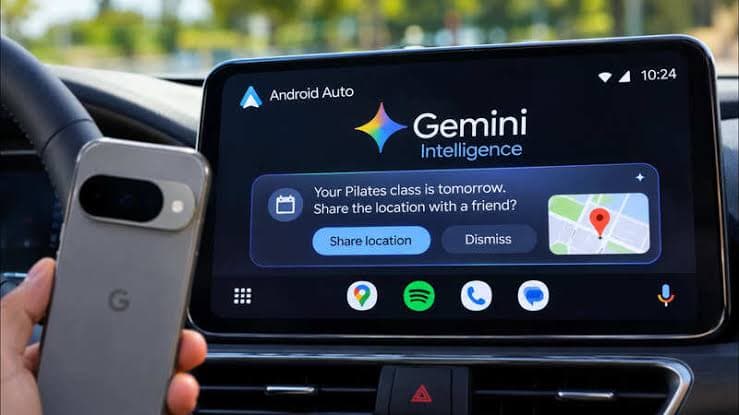
Google started releasing Personal Intelligence for Gemini in Android Auto on October 20. This update allows the AI assistant to access your personal data from various Google services, including Gmail, Google Calendar, Google Photos, Maps, YouTube, and Search, to offer a more tailored experience.
For those driving solo, this feature can be quite handy. You could ask Gemini for your flight's gate, and it pulls the information directly from your confirmation email. Similarly, it can route you to a doctor's appointment listed in your calendar or even find a place you once photographed to start directions. While the source notes it's not available in the European Economic Area, Switzerland, the UK, or Nigeria, it implies availability for Indian users.
Privacy Concerns with Passengers
The convenience comes with a significant privacy consideration, especially when you have passengers in the car. Android Police highlighted that there's no indication the system differentiates between a solo commute and a car full of people. This means your personal information, like appointments or past searches, could be inadvertently shared within earshot.
This Personal Intelligence feature is exclusively for personal Google accounts belonging to individuals 18 and older. Workspace business, enterprise, and education accounts cannot use it. While Android Auto is getting this now, cars with Google built-in are slated to receive the feature in the coming months.
How to Manage Gemini's Personal Intelligence Settings
Personal Intelligence is off by default. However, if you've already enabled it in the Gemini app on your phone, those settings will carry over to Android Auto. It's crucial to check your settings to ensure your data remains private when others are around.
To turn off Personal Intelligence completely, open the Gemini app on your phone. Go to Menu > Settings & help > Personal Intelligence, then toggle off the main switch. Doing this doesn't cripple Android Auto entirely; core functions like navigation, music playback, calls, and general questions still work. You simply lose the highly personalised context that Gemini provides by accessing your account data.
If a complete shutdown feels too drastic, you can pick and choose which services Gemini can access. In the Gemini app, navigate to Menu > Settings & help > Personal Intelligence > Connected Apps. Here, you'll see individual switches for various Google services.
Android Police specifically pointed out that Google Workspace appears as a single app toggle, but it covers Gmail, Google Drive, Google Calendar, Google Keep, and Google Tasks. This means you can't allow access to your calendar without also enabling Gmail, for example. It's a good idea to consider turning off Google Workspace and Google Photos, as a vague voice prompt could unintentionally reveal sensitive emails, schedules, or even locations where your photos were taken.
Services like Google Maps and YouTube, however, might be worth keeping on. Maps uses your past destinations and saved places for route planning, while YouTube leverages your watch history for music suggestions, both of which are generally useful in a car environment without major privacy risks with passengers.
Controlling Voice Activation and Message Notifications
Another area of concern is voice activation. With a small car cabin, everyone is within earshot of the microphone. If the assistant isn't perfectly tuned to your voice, a passenger saying "Hey Google" could inadvertently trigger a request for your personal data.
Voice Match is your primary defence here. Android Police suggested that while it might not be flawless, retraining your voice model can reduce accidental activations by passengers. You can do this in the Gemini app by tapping your profile picture, going to Settings > Talk to Gemini hands-free, and retraining your voice model. On some phones, this setting might still be labelled "Hey Google & Voice Match."
Beyond AI features, Android Auto also has default settings that can compromise privacy. By default, incoming messages are pushed onto the car's display and can be read aloud using text-to-speech. While convenient when driving alone, this means your private texts are visible on a large screen and broadcast over the speakers for everyone in the car to hear.
To prevent this, open Android Auto settings on your phone. Scroll down to Notifications and turn off "Show message notifications" to stop pop-ups on the dashboard. Additionally, turn off "Notifications with Assistant" to prevent Android Auto from reading your messages aloud. Taking these steps ensures your personal communications remain private, regardless of who's in the passenger seat.