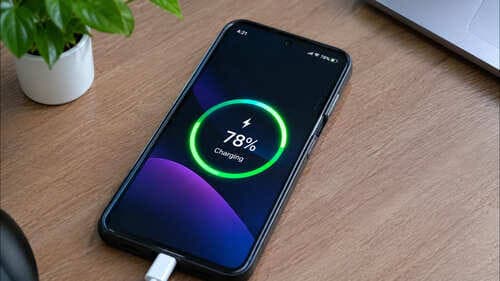
Many Windows PCs feature USB ports that can charge your phone even when the system is shut down. This guide explains how to check for and enable this convenient feature, which can be useful when wall sockets are scarce.
Many Windows PCs come with a handy feature: USB ports that can continue charging your smartphone or other devices even after the computer is completely shut down. This isn't universally enabled or labelled, but it can be a real lifesaver when you need a quick charge and a wall socket isn't available.
What is "Always On" USB Charging?
This capability is often referred to as "Always On" by brands like Lenovo. Dell, for example, uses the term "PowerShare" for the same function. Other manufacturers might use visual cues, such as a battery symbol or a lightning bolt icon next to a specific USB port. The core idea is that certain USB ports maintain power delivery even when the PC itself is off.
How To Check and Enable This Feature
Finding out if your PC supports this, and then enabling it, usually involves a bit of digging. Engadget reports the best starting point is your PC's manual. Look for mentions of "Always On" USB, "USB power delivery," or similar terms.
A simple way to test it is to plug in your phone, turn off the PC, and see if the phone continues to charge. If it stops, the feature is likely disabled or unsupported.
If your PC does support it but it's off, you'll typically need to dive into the BIOS or UEFI settings. Restart your PC and press the designated key during startup (often F2, Del, or F10).
Once in the BIOS/UEFI menu, navigate to sections like "Advanced," "Power," or "Chipset." Here, you should look for options like "USB power delivery" or an "Always On charging" setting and enable it.
It's also important to check for conflicting energy-saving features. Settings such as "ErP (Energy-related Products)" or "Deep Sleep" should be disabled if you want USB standby power to work. According to Engadget, enabling "ErP Ready" on some ASUS NUC PCs, for instance, disables USB standby power during shutdown. Remember to save your changes before exiting.
Laptops Have Specific Considerations
While desktops generally offer consistent standby power, laptops present a different scenario. Many laptops have built-in battery reserve limitations. This means USB charging might automatically stop once the laptop's internal battery reaches a certain low threshold.
Additionally, some laptop charging features might require the AC adapter to be connected even after shutdown. This is a crucial distinction from desktop standby power settings and is worth checking in your laptop's specific documentation.
Important Points To Remember
The "Always On" label refers strictly to power availability, not data transfer. You won't be able to move files or photos from your phone while the PC is off and charging.
Consistency is not a strong suit here. Manufacturers implement this feature in vastly different ways, leading to varying names, setup processes, and even port behaviour within the same system. The feature might work during shutdown, hibernation, or sleep, but not necessarily all three. Some ports on your PC might support it, while others don't.
Always ensure your USB cable is reliable and fully inserted into the port for effective charging.
Why This Matters For Indian Users
For many Indian households, having fewer wall sockets or needing to charge multiple devices can be a common scenario. This PC feature provides a convenient extra charging point without needing to power up the entire system or hunt for a free adapter. It's especially useful for those working from home or in small offices where power outlets might be limited.
Final Thoughts
This hidden PC capability can be incredibly useful. While finding and enabling it might take a few minutes, the convenience of having an extra charging port, even when your computer is off, is definitely worth the effort. Just remember to consult your PC's specific manual for the most accurate instructions.